
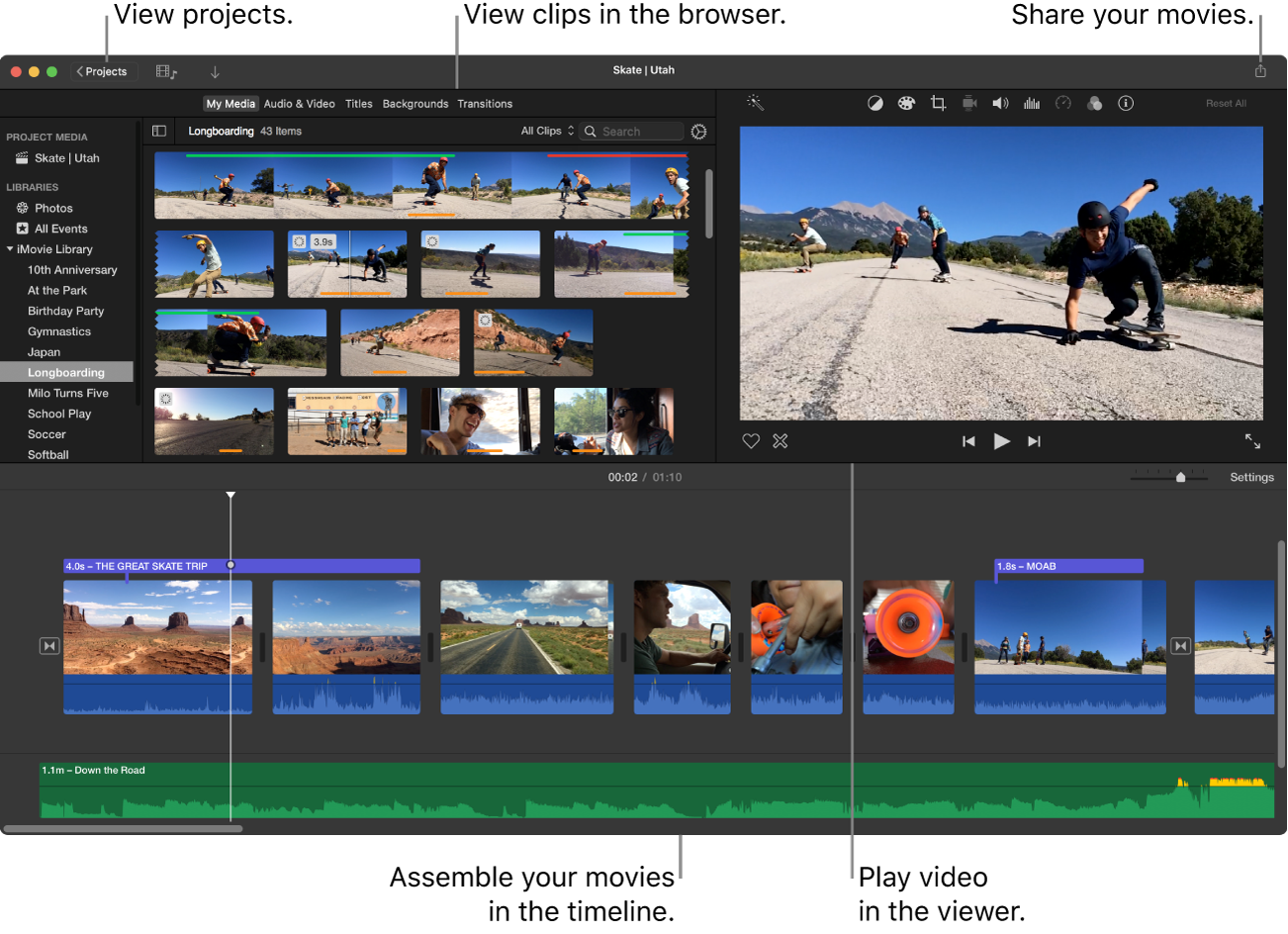
What it can do
- Arrange footage and photos, trim clips, add titles and transitions, and adjust audio.
- Tools also cover color, stabilization, speed, and picture-in-picture.
- This is Apple's Mac app. Check the supported macOS version in the App Store before installing.
Your first editing workflow
- Create a movie project and import footage or photos you have permission to use.
- Arrange clips on the timeline, adjust their starts and ends, and remove unwanted sections.
- Add short titles and licensed audio, then review transitions and levels.
- Choose sharing or export settings, save, and play the file to check text and framing.
Try this: a small editing project
Begin with a fifteen-second landscape video and put a short title on each of three shots. After learning the basics, compare how portrait footage is displayed.
Before you start
Normal movie editing in the Mac app is built around 16:9. Importing portrait footage does not necessarily produce a 9:16 video. Compare other editors if a dedicated vertical-video workflow is your priority.
Free & paid conditions
Free on the Mac App Store. Check supported macOS versions and storage requirements for your own Mac. [1] [2] [3]
Footage & music licensing
Use your own footage or media with verified permissions. Having a song in your music library does not establish permission to publish it in a commercial video.
Terms in this guide
Official sources
- [1] Pricing & purchase terms — apps.apple.com
- [2] Official guide or store — support.apple.com
- [3] Official guide or store — support.apple.com
These introductory guides use official websites and app-store listings. Workflows and practice projects are general examples organized for beginners, rather than hands-on reviews or performance rankings. Confirm features, prices, and OS support for your version and region.